Color Blind Pal
macOS / Utilitaires
Color Blind Pal allows people with color blindness or color deficiency to see the colors on their screen more clearly. It also lets developers see what their screen looks like to someone who is color blind.
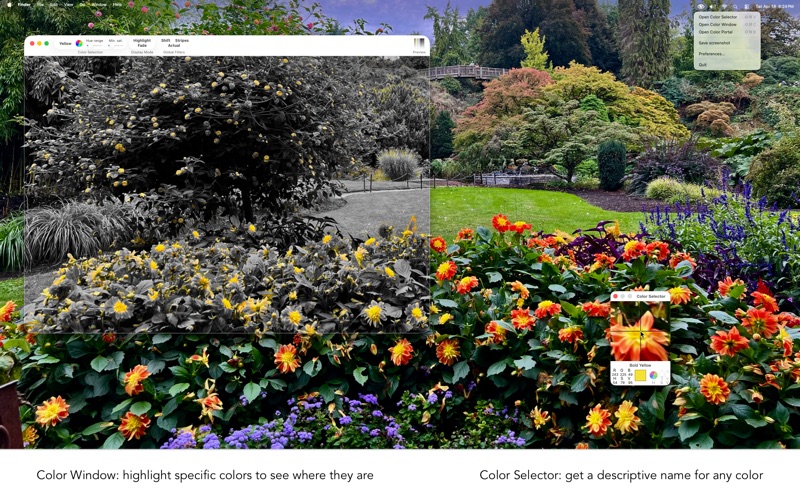
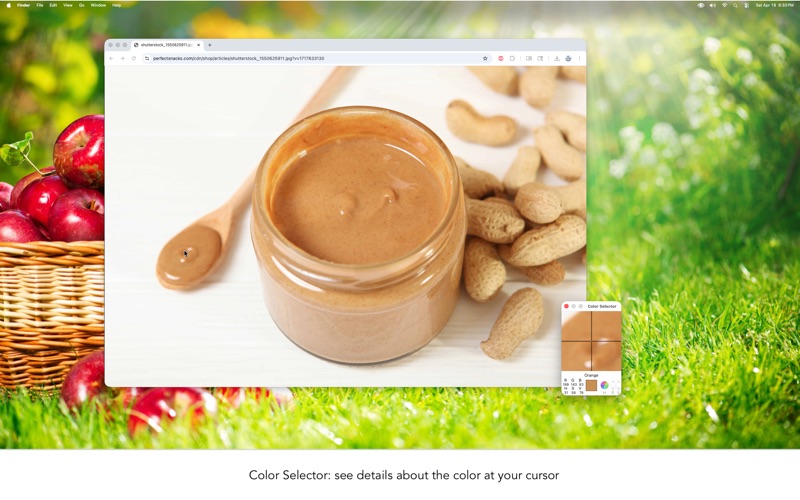
The Color Selector shows the color at your cursor, including a descriptive name like "faint green." It tells you what the color's hue, saturation, and value are, so you'll know exactly what the difference is between, for example, "teal" and "cyan."
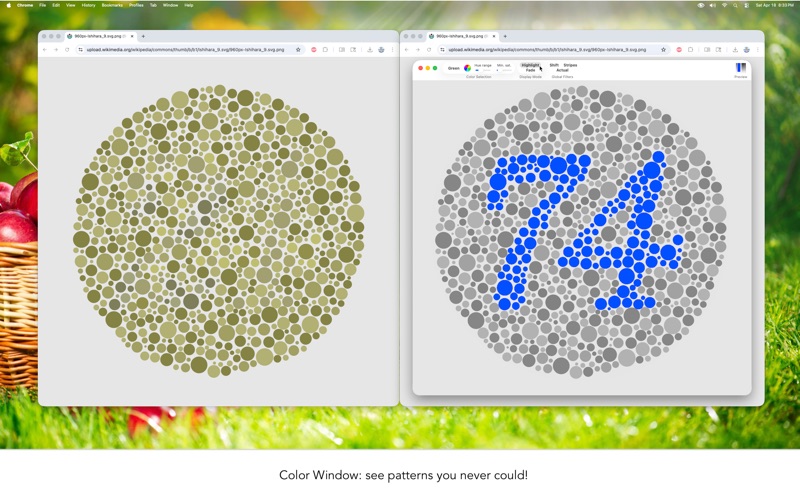
The Color Window isolates a color of your choosing so you can see what parts of your screen are that color. For instance, you can look at a picture of a sunset through the Color Window and cycle the selected color from purple to yellow to see exactly what colors are where. You can use the Shift feature to change the hues that are harder for you to differentiate to easier colors, based on the color blindness type you select. This feature can also be used to simulate any form of color blindness. You can use the Stripes feature to draw a striped pattern on selected colors, like red, to see whether a color is red or green while still preserving the actual color.
The Color Portal lets you apply the Color Window to your whole screen while still directly interacting with the windows behind it. Never work without color vision again!
You can easily open and close the Color Selector, the Color Window, and Color Portal with keyboard shortcuts or the menu bar icon. Click the eye icon on the menu bar to access Color Blind Pal.
With Color Blind Pal, you can easily do the following and more:
• Find out exactly what any color is
• See all the colors in any image
• Read any color-coded map, chart, or graph
• Pass a color vision test (it turns out there really are numbers in those dots!)
You can personalize the app to suit your needs. You can select your type of color blindness, turn on developer color codes for the Color Selector, change the color names to "scientific" or "colloquial," set your own keyboard shortcuts, and customize the Color Window toolbar.
Quoi de neuf dans la dernière version ?
New feature: click the "Save screenshot" button in the menu to capture a screenshot of the Color Window