CyberDeck for Companion
iOS Universel / Productivité
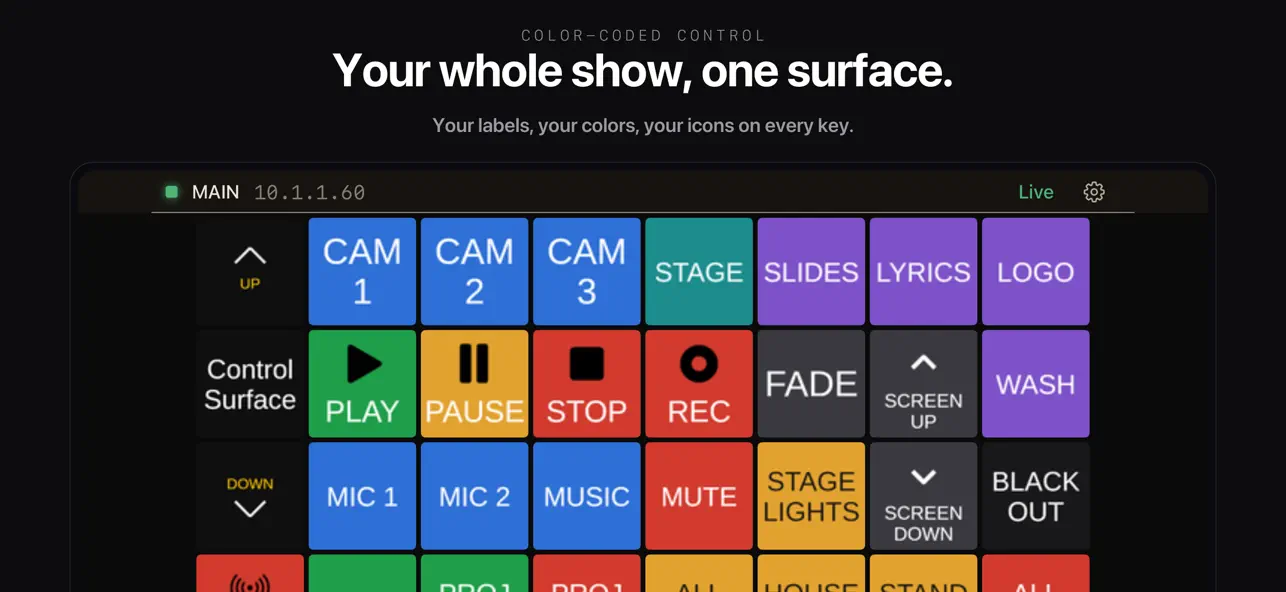
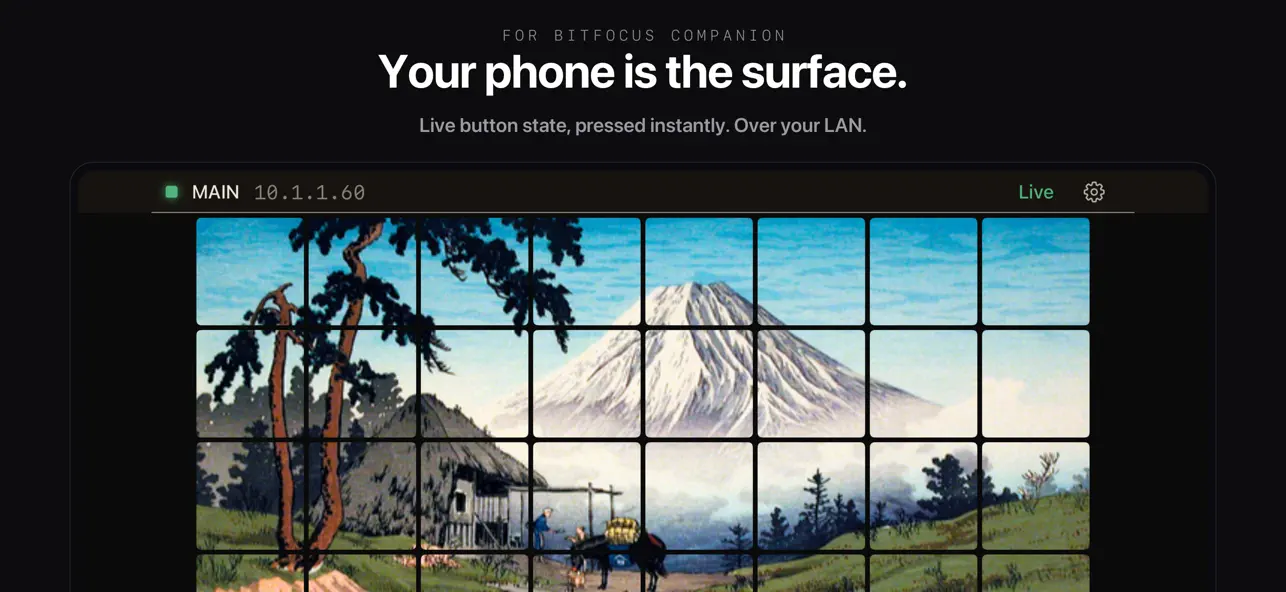
CyberDeck turns your iPhone or iPad into a button surface for Bitfocus Companion. If you run Companion on a Mac or PC to drive OBS, video switchers, lighting consoles, audio mixers, or anything else Companion supports, you can press those buttons from your phone.
Setup takes seconds. No config files. CyberDeck auto-discovers your Companion server using mDNS, or you can enter the host and port manually. The connection persists across launches and reconnects automatically if it drops.
Connection status lives in a rail at the top of the screen: name, address, and live state, with retry and switching one tap away.
What you get free:
- Live button surface that mirrors any Companion page
- Touch presses send to Companion instantly
- Page navigation drives Companion page changes
- The screen stays awake while you're connected (can be turned off)
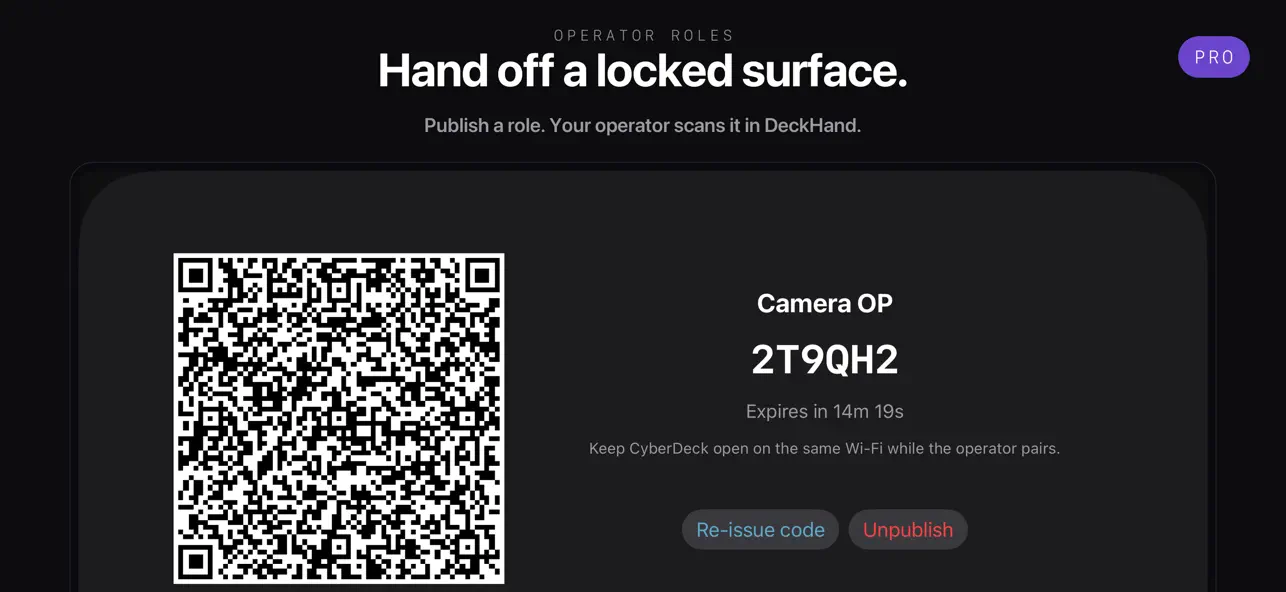
- PIN pad for locked surfaces
- Diagnostics view with a shareable event log
- Dark, light, and system theme; optional haptic feedback
The Full Version (one-time in-app purchase) unlocks:
- Custom Dashboards. Pull the buttons you use most from any Companion pages into one screen. Each cell can be a button or a rotary encoder.
- Multi-connection switching. Configure multiple Companion servers and switch between them with a tap.
Rotary encoders: touch and hold an encoder cell, then drag vertically to rotate clockwise or counter-clockwise. Same gesture on the live surface and inside Custom Dashboards.
V1 owners: you're already grandfathered. The Full Version unlocks automatically the first time you launch v2 on the same Apple ID that bought v1. No re-purchase, no setup.
Support and bug reports: support@cyberdeckapp.com. The Settings > Diagnostics view has a Share button that exports the event log; attach it if you're hitting a connection or subscription issue.
Quoi de neuf dans la dernière version ?
2.2 redesigns how CyberDeck shows and manages your connection.
- Connection status moved from the bottom bar to a rail at the top of the screen: name, address, and live state always visible. A one-time callout points you to its new home after the update.
- No more dead ends. Every connection failure now offers a next step: retry, edit the connection, or switch to another.
- The screen stays awake while connected, so the surface doesn't go dark mid-show. Settings > Keep Screen Awake turns it off.
- Dark is now the default theme. Light and System are still in Settings > Theme.
- Sharper button images on iPad.
- Restore Purchases now finds v1 grandfathered unlocks more reliably.
- Connection editor cleanup: setup goes straight to the editor, and the port field moved behind Advanced (the default almost always works).