AudioFrequencySignalGenerator
iOS Universel / Utilitaires
Explore binaural frequencies, record your audio sessions
Here are some possible applications :
- Calibration and testing of sound equipment or loudspeakers.
- Acoustic testing and equalization.
- Hearing tests (preferably under medical supervision).
- Binaural beats therapy (preferably under medical supervision. https://blog.mindvalley.com/how-to-use-binaural-beats/ ).
- Creation of audio samples.
- Demonstration of audio principles to students.
And many more.
Here is a comprehensive description of the app :
Binaural frequency signal generator.
0-20 khz range (can be expanded up to 40 khz. You can adjust range via the "Min Max" button, or via the in-app settings : Main menu > Settings > Change min / max freq.),
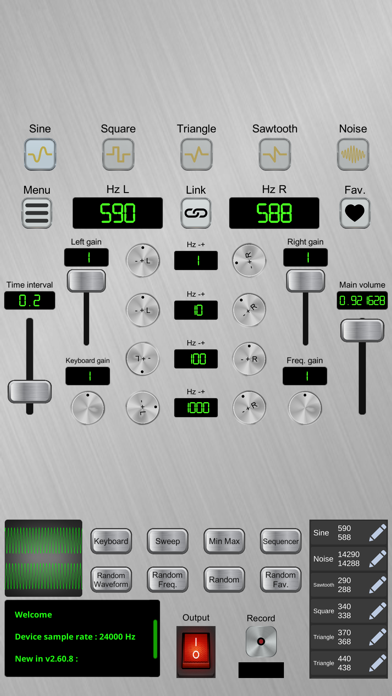
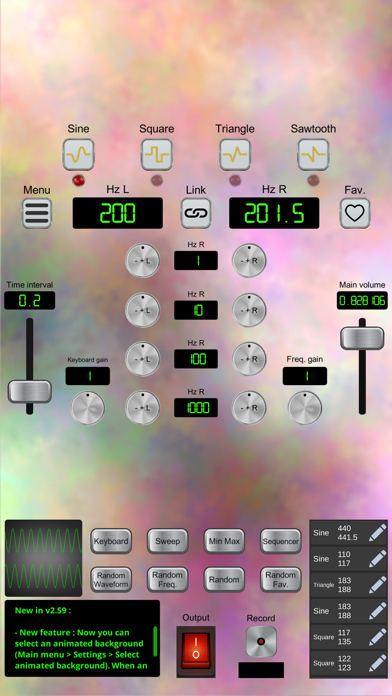
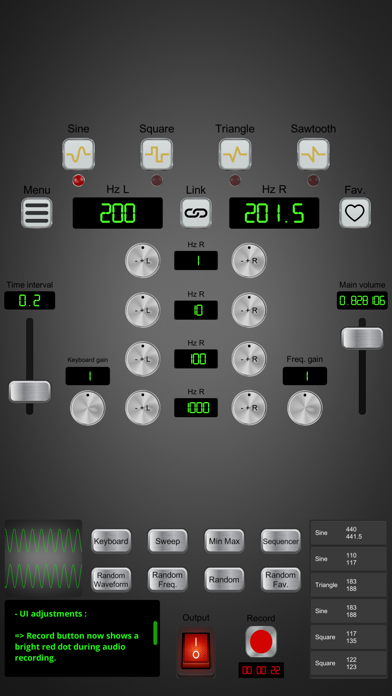
5 waveform types : Sine, Square, Triangle, Sawtooth, Noise.
The current waveform is displayed on an oscilloscope.
Two adjustable frequencies : Left, right.
For each side, you have 4 knobs that allow you to tweak the related frequency : - + 1 Hz, - + 10 Hz, - + 100 Hz, - + 1000 Hz (adjustable amounts).
To increase a frequency via a given knob, you just have to swipe up or right once from the related knob, then the frequency value steadily increases (adjustable wait time between each change via the left slider) until you release your finger.
To decrease a frequency, it's the same principle except you swipe down or left.
You can also adjust a frequency by clicking on the value.
You can link left and right frequency changes (via the "link" button, located between the left and right frequency values).
The last chosen left and right frequencies, waveform, wait time and volume are memorized in the device,
You can save your fav frequencies : To add the current set of frequencies and the current waveform to the favs, click on the "heart" button on the right of the screen.
The favs can be selected from the list on the bottom right, or from the main menu ("Favorite frequencies").
You can also export / import your favorite sets of frequencies and waveforms : From the main menu, you have "Export favorite frequencies" and "Import favorite frequencies" options. The exported file is a regular sqlite3 database. So, for instance, you can use a sqlite database browser to edit your favorite frequencies list before importing it (Main menu > Import favorite frequencies).
To record the audio output, click on Record button at the bottom of the screen. The button then becomes a Stop button, and a timer starts.
Once the Stop button is clicked, a file browser opens, so that you can save the resulting audio file (wav format) to your device.
Click the switch button at the bottom of the screen to activate / mute sound.
You can use this switch while recording your session.
A main volume slider is displayed on the right of the screen.
You also have gain sliders.
Random buttons : "Random Freq." (random frequencies), "Random" (random waveform type and frequencies), "Random Fav." (random waveform type and frequencies amongst favorites).
Audio Sweep :
You can trigger binaural sweep effects (via the "Sweep" button).
You can adjust the start and end frequencies (for both left and right channels), as well as the amount of HZ's between each frequency change.
Loop and Mirroring options are available.
This effect uses time interval (slider on the left) to determine the wait time between each frequency change.
You can manually change the frequencies during the sweep.
You can also stop a sweep at any time, by clicking again on the "Sweep" button (which is green as long as the sweep effect is running), or by resetting audio (Main menu > Reset audio).
Note : The "linked frequencies" functionality is bypassed each time a sweep effect is running.
Keyboards :
- Simple tap on the "Keyboard" button : Polyphonic keyboard.
- Long tap on the "Keyboard" button : Monophonic keyboard.
You can control the keyboards music notes gain via the "Keyboard gain" knob.
On a last note, please be careful with the volume control.
Enjoy !
Quoi de neuf dans la dernière version ?
Bug fixes.
In particular :
- Files that can be saved from the app (audio files, favorite frequencies sqlite3 files, in-app sequencer code files) are now showing in the Files app ("Audio Frequency Signal Generator" folder).
- The in-app sequencer could not be used any more due to a bug which prevented the editing of the code. It is resolved.
The in-app sequencer (you can access it by clicking the "Sequencer" button) lets you easily program sequences of commands related to frequencies and audio output within your Audio Frequency Signal Generator app.
More infos at https://www.oniricforge.com/afsgl/