Palm Music Player
iOS Universel / Musique
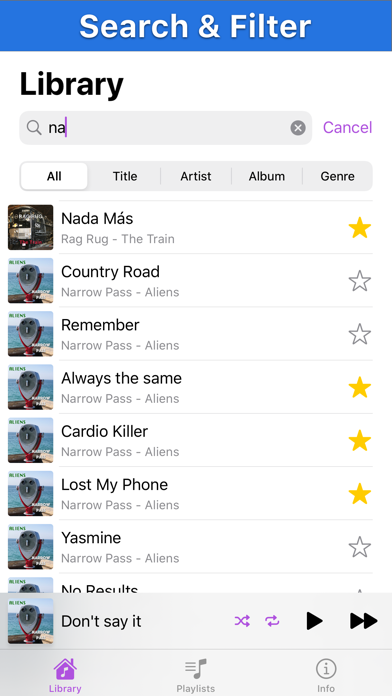
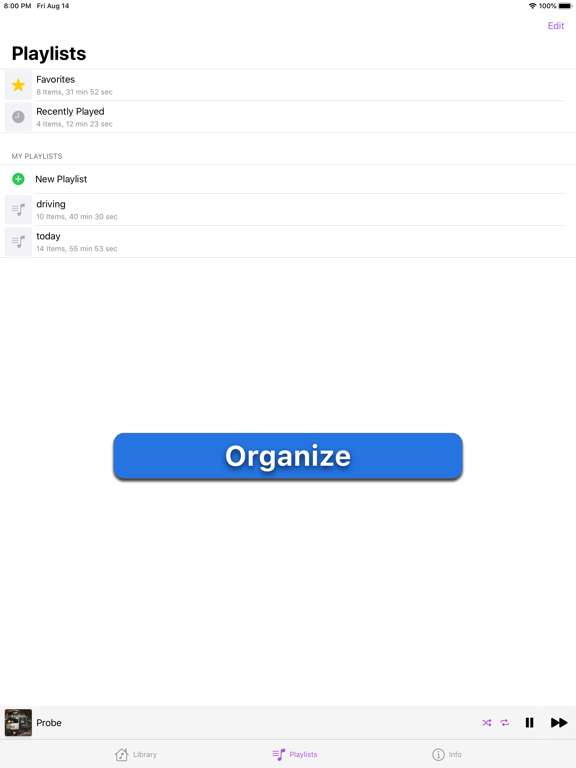
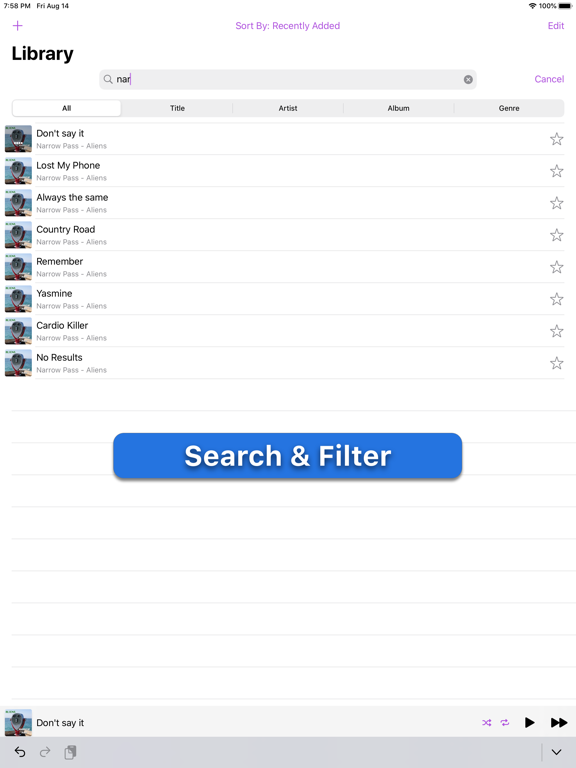
Import your music collection from a network share, download folders on your device or link to Apple Music Library all in one place.
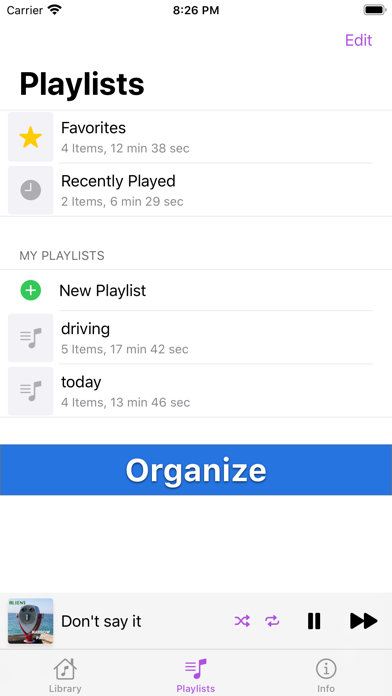
Create combined playlists from different sources.
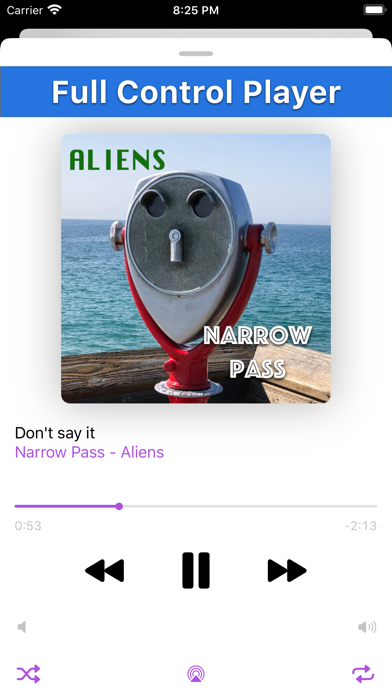
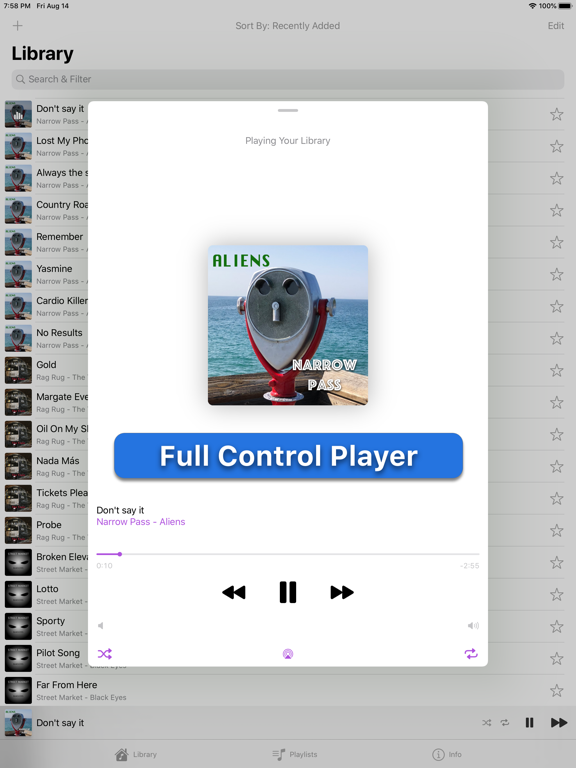
Features manual and automatic playlists, full control player, Air Play and Carplay.
Once imported the music is available to play offline.
------------------------------
Getting Started
------------------------------
To import music from an SMB network share read below or watch the first video
Note, refer to your computer's operating system user guide how to set up such share.
For Mac you can go to https://support.apple.com/ and search for 'set up file sharing'
1. Select 'Library' tab
2. Tap '+' in the upper left corner
3. Tap 'Copy From Network Share Or Folder'
4. Go to 'Browse' view and tap on '...' circular button
5. Tap 'Connect to Server'
6. Type the server IP address e.g.: 192.168.1.10 (this is the address of a server with a network share you have set up earlier).
7. You may need to enter your username and credentials
8. Connect to the server
9. Browse to the audio file/files you want to import.
10. To import just 1 file tap on it
11. To import multiple files at once tap 'Select', mark the files and tap 'Open'
------------------------------
To import music from a folder on your device read below or watch the second video
1. Select 'Library' tab
2. Tap '+' in the upper left corner
3. Tap 'Copy From Network Share Or Folder'
4. Go to 'Browse' view and tap on 'On My iPhone/iPad' or any other folder you have access to
5. Browse to the audio file/files you want to import.
6. To import just 1 file tap on it
7. To import multiple files at once tap 'Select', mark the files and tap 'Open'
------------------------------
To link to the music from your Apple Music Library read below or watch the third video
(Note, you can only link to the music you have downloaded to your device. Go to Apple Music app to download them from iCloud if needed)
1. Select 'Library' tab
2. Tap '+' in the upper left corner
3. Tap 'Link From User Music Library'
4. Browse to the audio file/files you want to link to (Again, you will only see the music downloaded to your device)
Quoi de neuf dans la dernière version ?
- adjusted to iOS 15
- bug fixes