Smart Arrow Project Manager
iOS Universel / Productivité
The Project & Resource Management features implement the following project planning & tracking workflow:
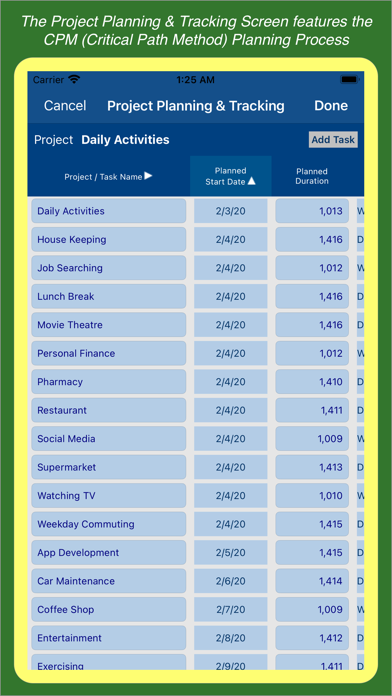
a) Project Planning - Create project providing its planning data: start date, duration, finish date, effort and cost.
b) Task Planning - Using CPM (Critical Path Method)
b.1) Tasks Without Predecessors - Add tasks providing their planning data: start date, duration, finish date, effort and cost.
b.2) Tasks With Predecessors - Add tasks providing their planning data: duration, predecessors, effort and cost. CPM calculates task planned start & finish dates.
b.3) All Tasks - CPM calculates task planning data: earliest start & finish dates, latest start & finish dates, and total & free floats.
c) Resource Planning Screen & Chart - Add project resources providing resource identification, category, availability, and cost details.
d) Resource Allocation - Allocate project resources to tasks providing allocated quantity, and allocated daily hours.
e) Resource Projections Screen & Chart - Evaluate resource and task level allocation values projected for weekly & monthly periods.
f) Project Cost Projections Screen & Chart - Evaluate project, resource category, and resource level costs projected for weekly & monthly periods.
g) Task Tracking - Track task execution providing actual start & end dates, actual effort & effort to complete, and actual cost & cost to complete.
h) Project Tracking - Analyze project execution data: actual start & end dates, actual effort & effort to complete, and actual cost & cost to complete.
h.1) The "Project Planning & Tracking" screen provides project & task effort & cost based progress indicators.
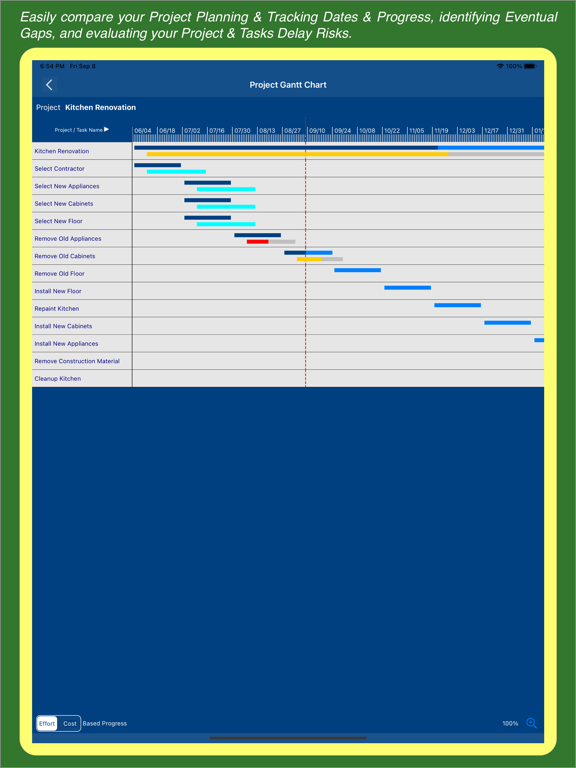
h.2) The "Project Gantt Chart" screen highlights project & task planning & tracking dates, progress, and delay risks.
The Time Tracking feature allows you to track the time spent on your project tasks
a) The Time Tracking Dashboard screen allows you to automatically track the time spent on your project tasks.
b) The Time Sheet Details screen allows you to manually track the time spent on your project tasks.
c) The Time Tracking Report & Chart provide the daily, weekly, and monthly total times spent on your projects & tasks.
d) The Task Timer screen allows you to automatically track the time spent on one particular project task.
e) The Task Time Split screen allows you to split one particular task time record into two records.
f) The Task Time Transfer screen allows you to transfer one particular task time record from the task to another.
The Project Billing Feature allows you to configure project & task billing settings, and create & export project billing reports.
a) The Project Billing Settings screen allows you to configure several project billing parameters such as regular time rate and daily & weekly overtime rates & limits.
b) The Project Planning & Tracking screen includes the "Billable" switch, which allows you to identify the project tasks that should be billed.
c) The Billing Report Details screen provides a multi-level billing report encompassing the following sections: Report Summary, Weekly Summary, Daily Summary, and Daily Details.
d) The Billing Report Export button allows you to export billing reports with different levels of granularity.
The To Do Lists feature allows you to create, maintain, and track Project & Task Level To Dos.
Smart Arrow Project Manager® supports iCloud connectivity, which ensures that all local database changes are uploaded to the iCloud database, and synchronized with your iPhone and iPad devices.
The Standard App provides the following features: Project Management using CPM (Critical Path Method), Time Tracking, and To Do Lists.
The "Premium" Subscription Plans provide the following features: Resource Management, Manual Time Sheets, and Project Billing.
The "Premium Plus" Subscription Plans provide the following features: Resource Management, Manual Time Sheets, Project Billing, Amazing Charts, and Family Sharing.
Quoi de neuf dans la dernière version ?
Project Cost Projections Chart (Enhancements)
-----------------------------------------------
Added the "Cumulative" option, which allows you to visualize Project Cost Projections Charts with Cumulative Values.
This option is particularly helpful when you select the Area Chart or Bar Chart options, because they basically provide Multiple Stacked Project Cost S-Curves.
For example, when you choose the Category Level and Monthly Period options, you get Multiple Stacked Resource Category Level S-Curves showing Cumulative Monthly Values.